How auto-start tracking works (Trucker Tools)
Quick answer
Load tracking auto-starts only when three conditions are all met — here's what they are and why it might not.
First, turn off any VPN. A VPN on your phone hides or fakes your real location and will stop tracking from working. Fully disable any VPN app or setting, then reopen the app.
Tracking can start by itself, but only when all of these happen.
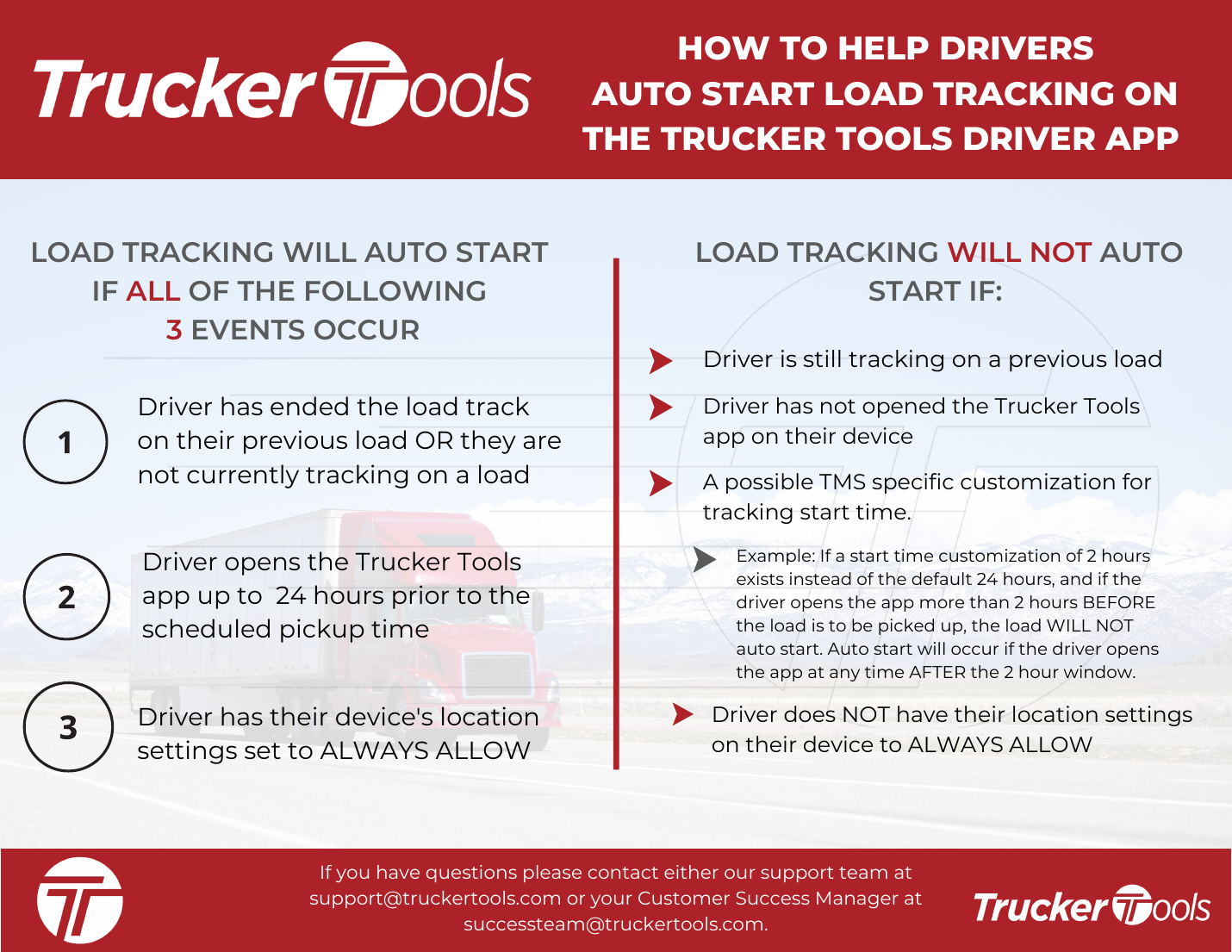
Tracking auto-starts when ALL three occur
The previous load is finished
The driver ended the previous load track, or isn't currently tracking any load.
The app is opened in the window
The driver opens the Trucker Tools app up to 24 hours before the scheduled pickup time.
Location is set to always-allow
The device's location setting is ALWAYS ALLOW (iPhone) / Allow all the time (Android).
Tracking will NOT auto-start if
Still tracking a previous load
The driver is currently tracking another load.
The app was never opened
The driver hasn't opened the Trucker Tools app on the device.
A custom start-time window applies
A TMS-specific start customization can change the window. Example: with a 2-hour start window (instead of the default 24h), opening the app more than 2 hours before pickup won't auto-start; it will start if opened any time inside the 2-hour window.
Location isn't always-allow
The device location isn't set to ALWAYS ALLOW / Allow all the time.
📷 Show pictures⌄
AI summary
Source: Tracking Help Center — load-tracking help from the makers of BotLine.
Still stuck?
Ask the AI assistant a question, or check the FAQ.