View & manage your assigned loads / update the truck
Quick answer
As a carrier, update the assigned truck/trailer (asset ID) on a live telematics load track — by email link or the Carrier Portal.
Trucker Tools lets carriers update the truck/trailer (asset ID) on live load tracks. Use whichever method you prefer.
Method A — Load Track email
Open the Load Track
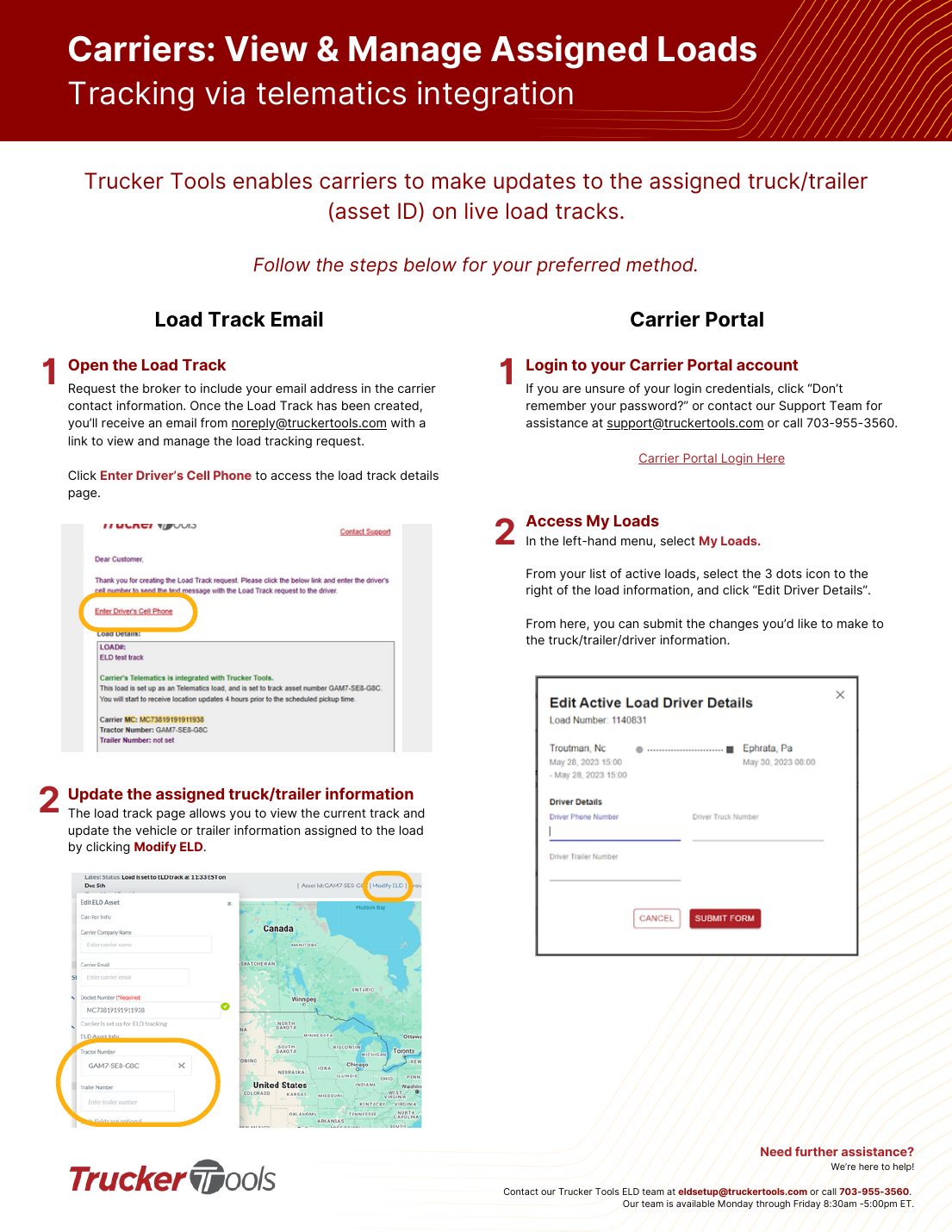
Ask the broker to add your email to the carrier contact info on the load. Once the Load Track is created you'll get an email from [email protected] with a link. Click 'Enter Driver's Cell Phone' to reach the load-track details.
Update the truck/trailer
On the load track page you can view the current track and update the vehicle/trailer assigned to the load by clicking Modify ELD.
Method B — Carrier Portal
Log in to the Carrier Portal
If you don't know your credentials, use 'Don't remember your password?' or contact [email protected] / 703-955-3560.
Open My Loads and edit
In the left menu choose My Loads. From your active loads, click the 3-dots icon to the right of the load and choose 'Edit Driver Details' to change truck/trailer/driver info.
📷 Show pictures⌄
💡 ELD setup help: [email protected] or 703-955-3560 (Mon–Fri 8:30am–5:00pm ET).
AI summary
Source: Tracking Help Center — load-tracking help from the makers of BotLine.
Still stuck?
Ask the AI assistant a question, or check the FAQ.